Seakeeper 5 Operation Manual (90960-1)
3.1 ConnectBox and Display Screens Overview
Introduction
The Seakeeper 5 requires the ConnectBox and connection to a compatible MFD. The compatible MFD will show the same Seakeeper Application outlined in this section.
When 12 VDC power is applied to the Seakeeper, the ConnectBox will illuminate, and the Seakeeper Application on the MFD will initialize. If the Seakeeper App does not appear on the MFD, please refer to the appropriate Technical Bulletin to troubleshoot, at www.seakeeper.com/technical-library/ and filter for the Seakeeper 5:
- TB-90478 – Garmin and Seakeeper Compatibility
- TB-90479 – Raymarine and Seakeeper Compatibility
- TB-90480 – NAVICO (Simrad/Lowrance/B&G) and Seakeeper Compatibility
- TB-90598 – Furuno and Seakeeper Compatibility
ConnectBox and Home Screen
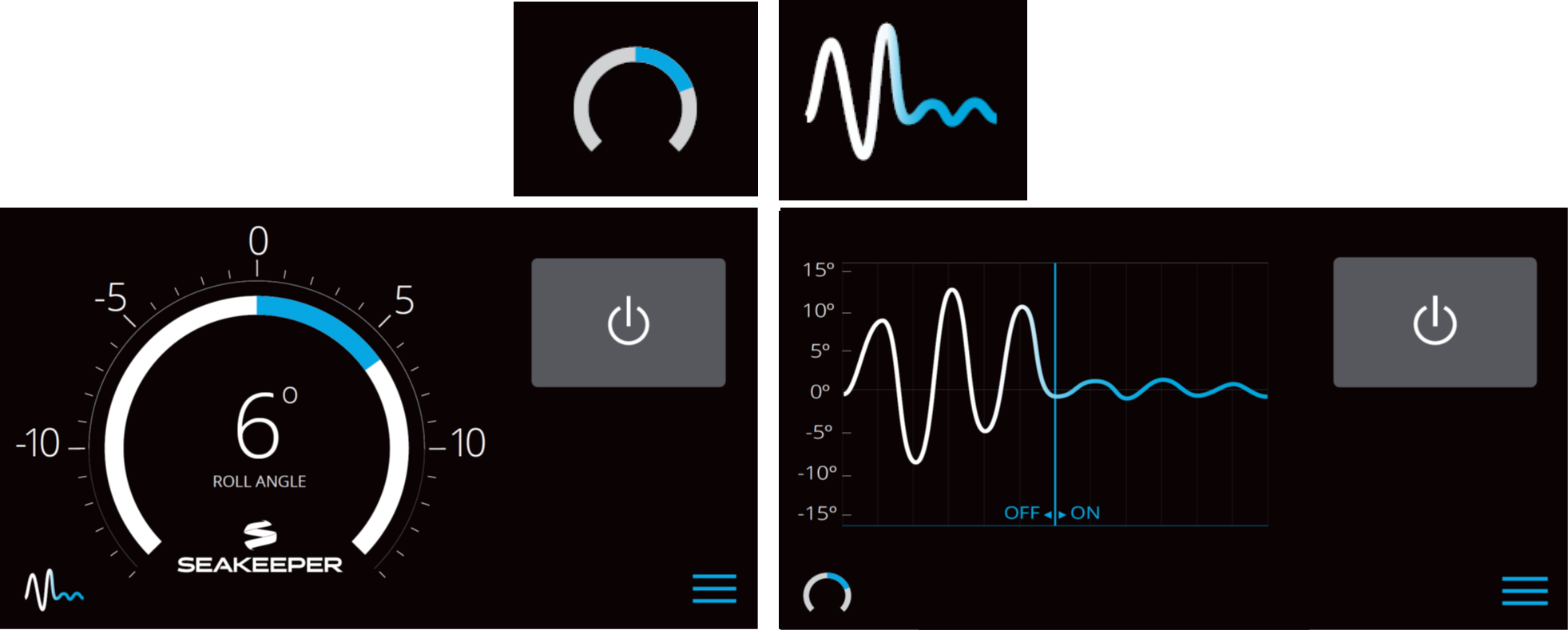
- After the Seakeeper ConnectBox and Application have initialized, the ConnectBox and Application Home Screen will be displayed as shown below.
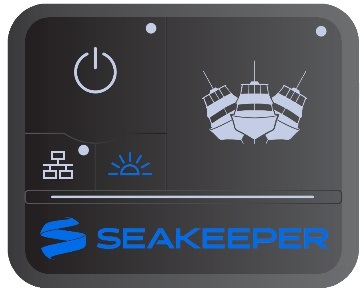
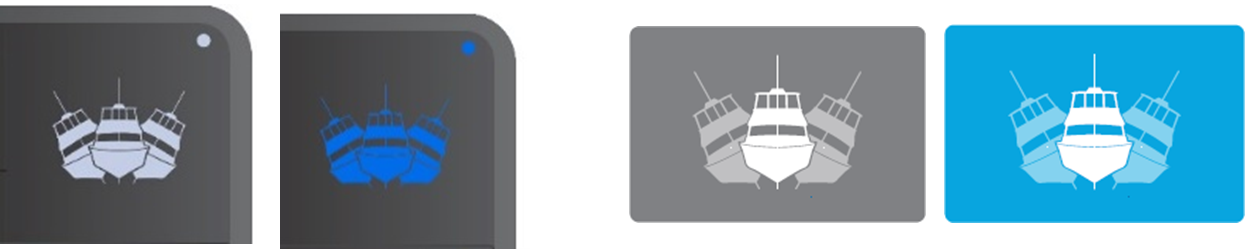
- The Seakeeper can be controlled either by the ConnectBox (shown in the images on the left) or by the Application on the MFD (shown in the images on the right). Seakeeper POWER button: when pressed, the button will change from grey (Seakeeper Off) to blue (Seakeeper On).

- Seakeeper STABILIZE button: when pressed, the button will change from grey (Stabilize Off) to blue (Stabilize On).
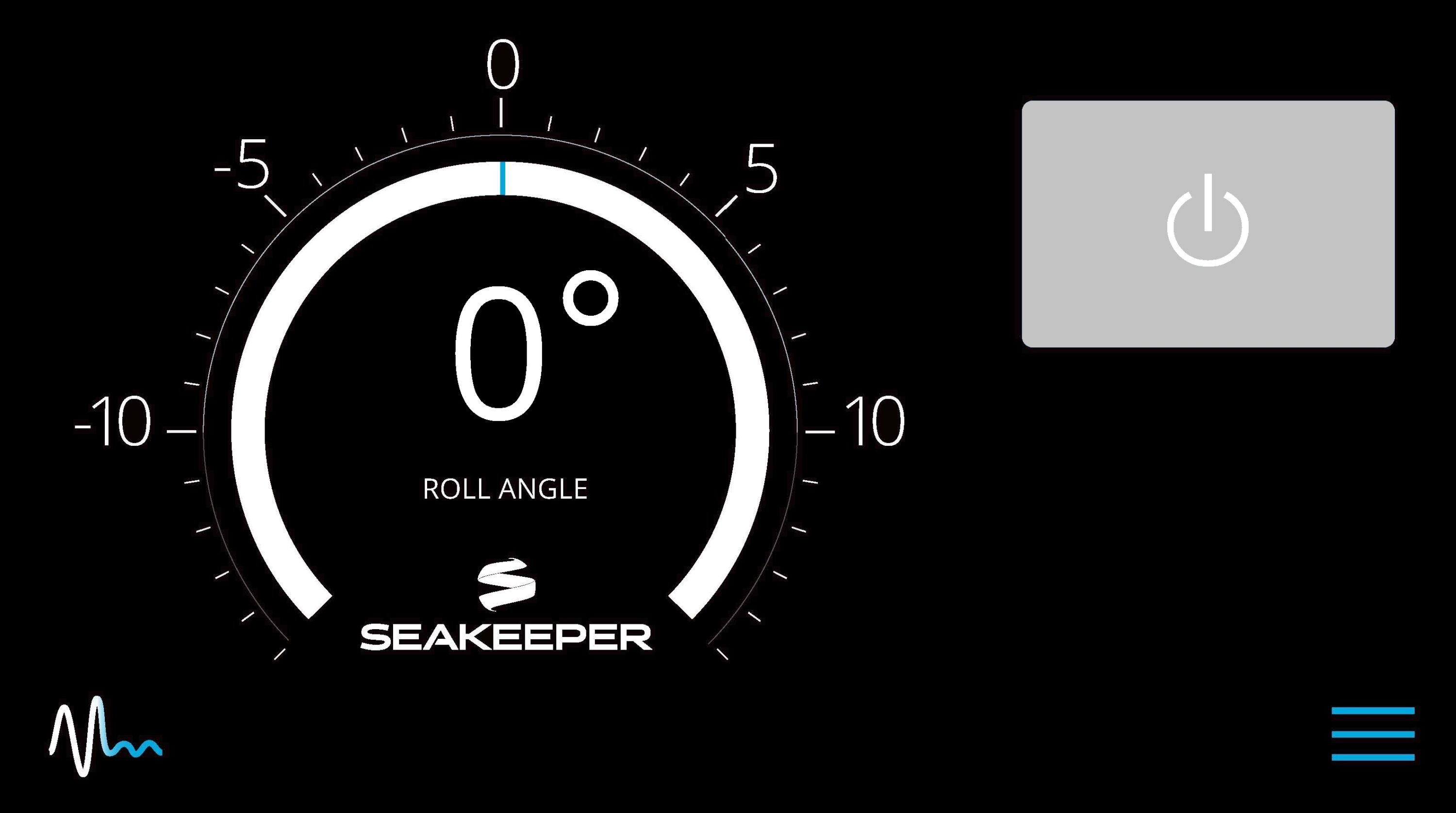
- On the MFD application Home Screen view, these buttons can be pressed to toggle between the Roll Angle Gauge and the Roll Angle Graph, as shown below.
- When the MENU button is pressed,
 the Menu Bar will appear or disappear at the bottom of the screen.
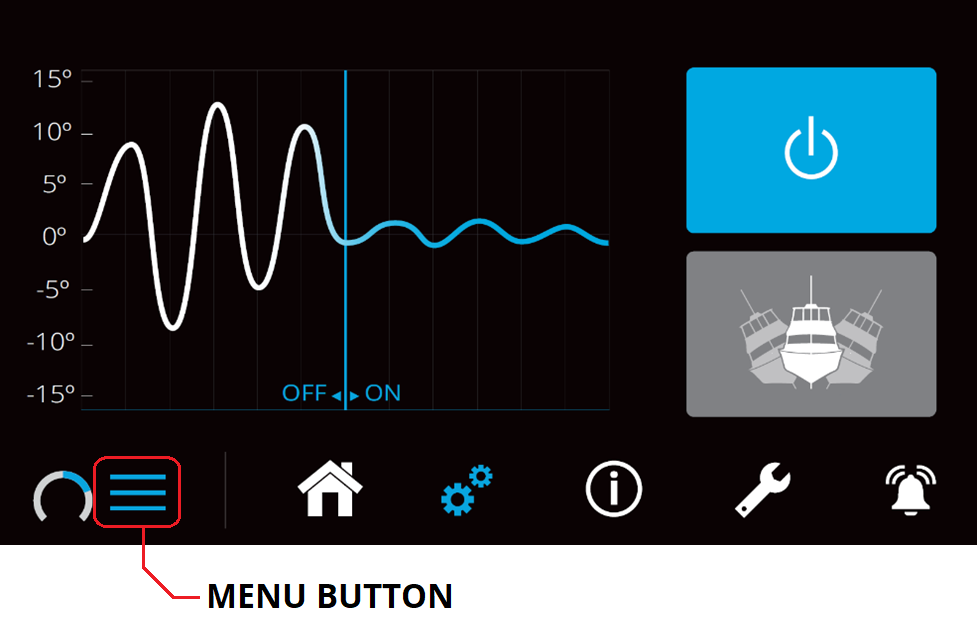
- The Menu Bar is used to navigate between pages. From left to right, the available pages are Home, Settings, Information, Service, and Alarm History. The selected page is highlighted in blue on the Menu Bar.

Settings Page
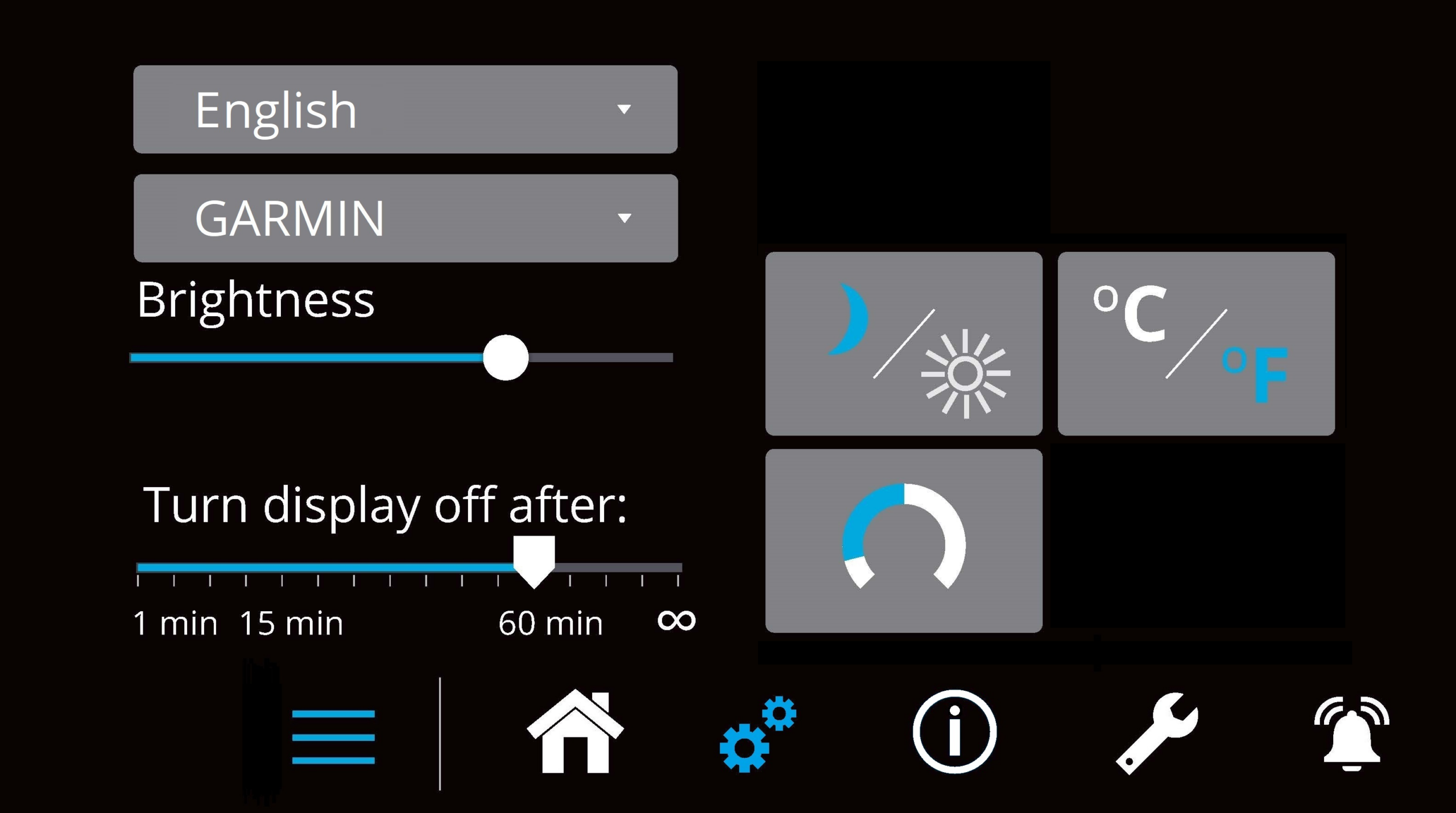
The Settings Page allows the user to adjust their display preferences. It can be accessed by pressing the gears  in the menu bar.
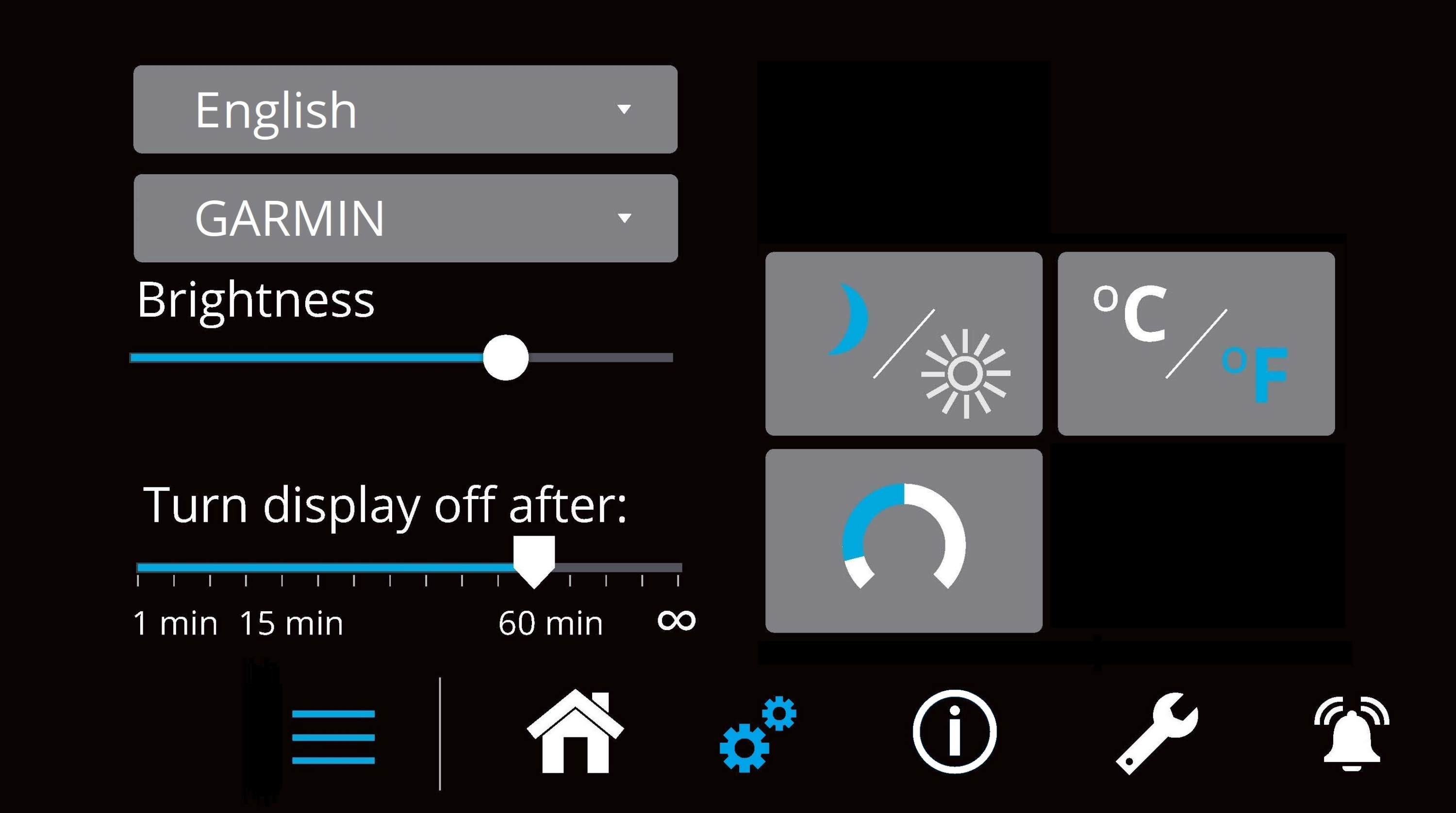
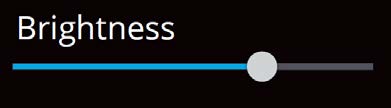
- To increase or decrease the display brightness, slide the white dot left to decrease and right to increase on the brightness bar, pictured below on the Settings Page.
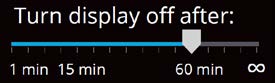
- Adjust the sleep timer from 1 minute to 60 minutes, or set it to on all the time using the sleep time slider. Touching the Seakeeper screen icon will wake the display up after it has gone to sleep.
- Change the sign of the roll angle displayed in the roll angle gauge so the gauge matches the boat’s motion. This will depend on installation orientation and will only need to be adjusted once. If the Seakeeper is facing the bow of the vessel, the Roll Angle Gauge should show blue on the left (pictured left). If the Seakeeper is facing the stern of the vessel, you should select the Roll Angle Gauge with the blue on the right (pictured right). A positive roll angle should be displayed when the vessel rolls to starboard.
- Switch between day and night modes. The selected mode is highlighted in blue. To switch between day and night modes, press the button.

- Change the temperature units displayed on the Service Page between degrees Celsius and degrees Fahrenheit. The selected units are colored blue; to switch between Celsius and Fahrenheit, press the button.

- The language on the Seakeeper application can be changed using the Settings Page. By clicking ENGLISH, a drop-down menu appears, allowing the desired language to be selected.
Information Page
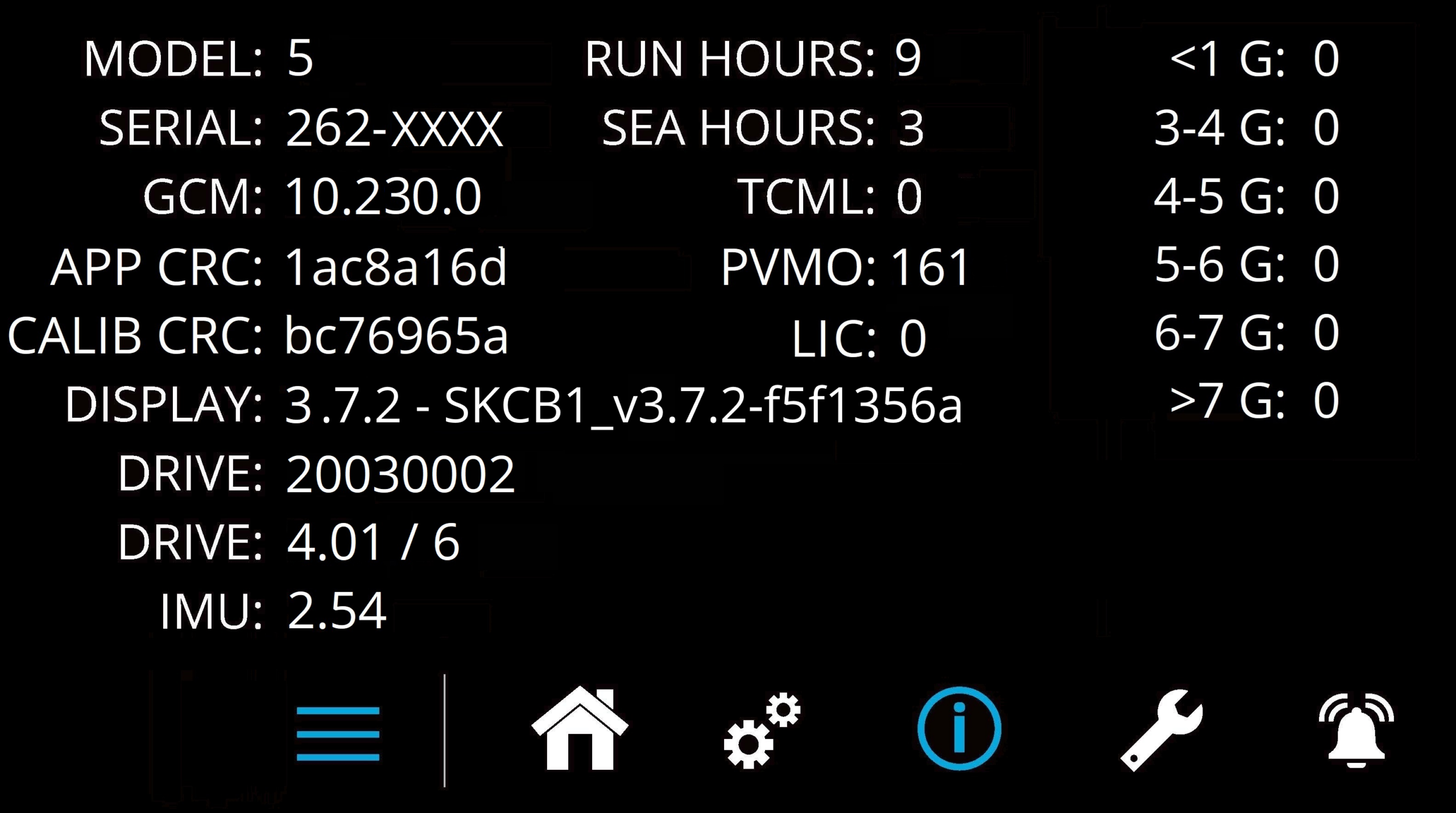
- The Information Page
 displays the Seakeeper model, serial number, software versions, run hours, sea hours, and other information. The image below is an example and may not match the information details of the installed Seakeeper.
Service Page
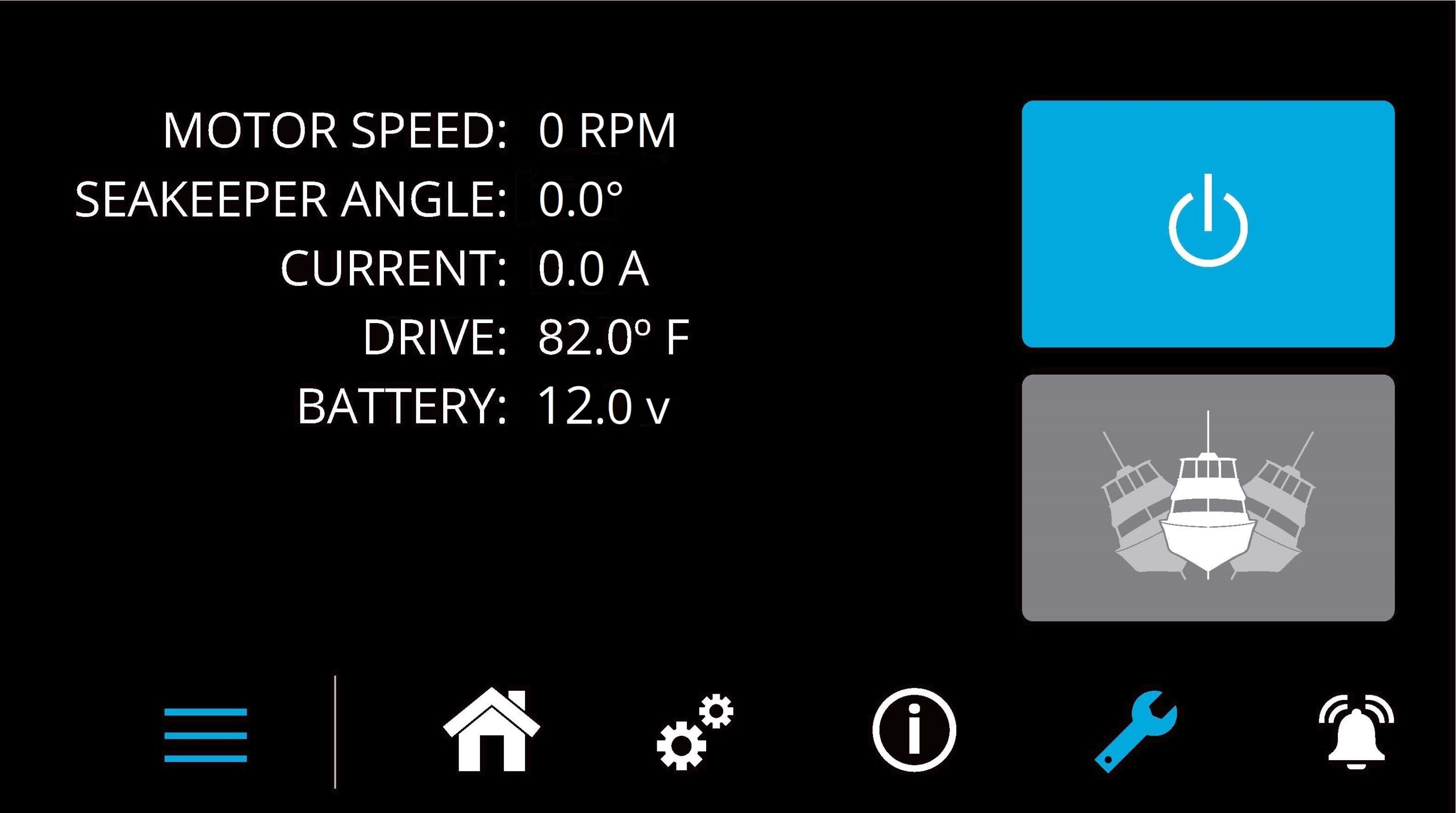
- The Service Page
 displays Seakeeper operating information.
Alarm History Page
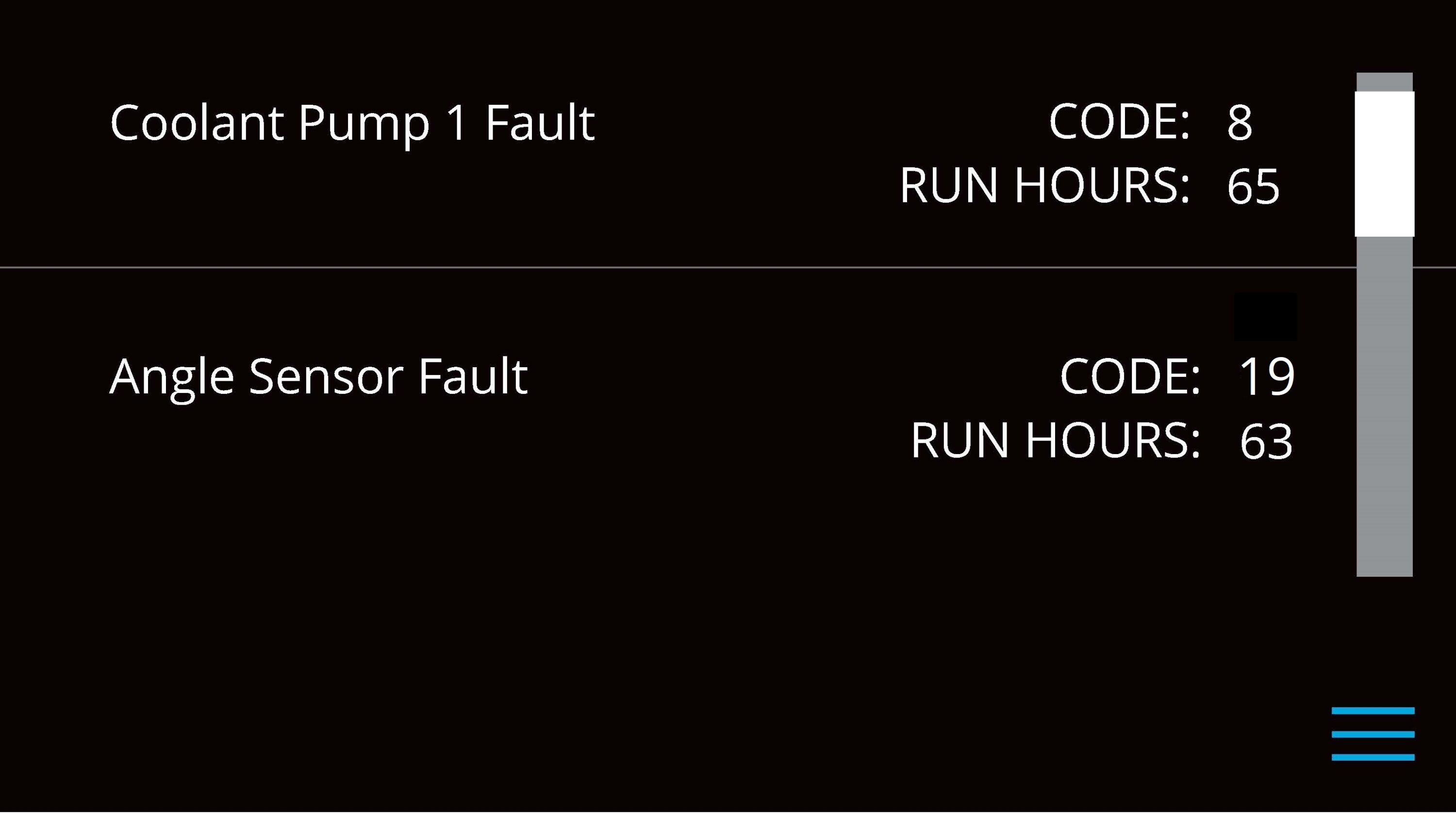
- The Alarm History Page
 shows alarms and warnings that have occurred in the past, along with their associated run hours. The scroll bar on the right is used to move up and down through the list.